

This checklist is for crypto and Bitcoin traders building a desk for chart review, order entry, and day-to-day computer use. The picks cover core display, seating, and input needs, along with equipment for connecting a laptop and USB devices. A comfortable, dependable setup can make long sessions easier to manage, but it does not guarantee better trading decisions.

Get hardware and tech essentials delivered free with Prime
- Fast, free delivery on millions of items
- Prime Video, Amazon Music and more included
- Member-only deals all year
The sections follow the main pieces of the setup: monitor, monitor arm, keyboard, chair, docking station, and Ethernet-based USB extender. Each section explains why that slot matters, what to check before buying, and the intended fit of the named pick. Product names are presented as supplied; verify exact specifications and compatibility with the manufacturer before ordering.
Use the checklist by measuring your workspace and checking your computer’s ports, display support, and operating-system compatibility first. Then compare each item’s supported size, connection type, and adjustment range with your actual needs. Prioritize the parts that resolve a real constraint in your current setup, and leave room for safe cable routing and comfortable positioning.
Ultrawide Trading Monitor
A large display can give charts, order panels, and reference material more room, but the right layout depends on your desk and viewing habits. The Dell U4323QE 43-inch 4K UHD UltraSharp Monitor is the listed pick for this slot. Before choosing a 43-inch screen, measure the usable desk width and depth, and consider how far you can sit from it while keeping the whole viewing area comfortable to scan. A screen that dominates a shallow desk may be harder to use than a smaller display positioned well.
Do not assume that a monitor’s resolution alone guarantees a suitable trading workspace. Check your computer’s ability to drive the display at the intended resolution and refresh settings, and confirm which inputs and connection standards are available on both devices. If you plan to connect through a dock, verify that the complete computer-to-dock-to-monitor chain supports your intended display configuration. Also check the monitor’s stand footprint and adjustment options, since those affect usable desk space and viewing position. Arrange frequently consulted panels within an easy line of sight, and avoid a layout that makes you repeatedly turn your head or lean forward.
What to look for:
- Measure desk width, depth, and viewing distance before committing to a 43-inch screen.
- Confirm your computer supports the monitor’s intended resolution and connection method.
- Check available inputs and whether your dock can pass through the display configuration you need.
- Review the stand footprint and adjustment options against your workspace.
- Plan chart and order-panel placement to reduce unnecessary head turning.
Dell U4323QE 43-inch 4K UHD UltraSharp Monitor

The Dell U4323QE is a 43-inch 4K UHD monitor featuring IPS technology for vibrant colors and sharp details. It offers extensive connectivity options, including USB-C, HDMI, DisplayPort, Ethernet, and a built-in USB hub, making it ideal for professional multitasking and digital creators.
Pros:
- Large 43-inch 4K UHD display with vibrant colors and sharp details
- Multiple connectivity options including USB-C with 90W power delivery
- Advanced multitasking features like Auto KVM and dual PC connection
- Adjustable mounting options for versatile setup
Cons:
- High price point may be a barrier for some users
- Designed primarily for professional use, less suitable for casual users
- Limited refresh rate for gaming or fast-paced content
Best for: Traders who have room for a 43-inch display and want a broad chart workspace
Not ideal for: Small or shallow desks, or computers without verified display compatibility
Bottom line: Choose this monitor only after confirming desk fit and the full display connection path.
Adjustable Monitor Arm
A monitor arm can free up some of the desk area occupied by a stand and make screen positioning easier to tailor. The listed pick is the Ergotron LX Pro Dual Monitor Arm for Two Monitors up to 27 Inches. Its stated two-monitor limit is important: the product name specifies monitors up to 27 inches, so do not assume it is appropriate for the 43-inch Dell listed in the monitor section. Treat these picks as separate options unless the arm manufacturer confirms compatibility with your actual display.
Before buying any arm, check the weight and mounting pattern of each monitor against the arm’s specifications, as well as the desk’s thickness and construction. Confirm whether the desk edge or mounting surface can safely accept the chosen attachment, and leave enough clearance behind the desk for movement. A common mistake is focusing on screen size alone; weight, mounting hardware, cable routing, and the arm’s range of motion also matter. If your setup uses one large monitor, this dual arm may not be the right match. If using two supported monitors, plan their height and angle so the bezels and viewing positions work for your seating posture.
What to look for:
- Verify each monitor is within the arm’s stated size and weight limits.
- Check monitor mounting patterns and included or required mounting hardware.
- Confirm desk thickness, construction, and mounting clearance are compatible.
- Measure available space behind and around the desk for arm movement.
- Plan cable routing and screen positions before installation.
Ergotron LX Pro Dual Monitor Arm for Two Monitors up to 27 Inches

Mount two monitors to your desk with adjustable height, rotation, and tilt for a more comfortable viewing position. The arm supports VESA 75 x 75 mm and 100 x 100 mm patterns, includes a desk clamp for desks 0.4 to 2.4 inches thick, and features built-in cable management.
Pros:
- Supports two monitors up to 27 inches and 20 lbs each
- Offers adjustable height, 360-degree rotation, and 85-degree tilt
- Includes built-in cable management
- Includes a 10-year warranty
Cons:
- Grommet mount is sold separately
- Desk clamp supports desks only from 0.4 to 2.4 inches thick
Best for: A desk using two monitors that meet the arm’s stated limits
Not ideal for: A single 43-inch display or monitors outside verified compatibility
Bottom line: Match the arm to the exact monitor sizes, weights, and desk before mounting.
Mechanical Trading Keyboard
A keyboard is one of the most frequently used parts of a trading desk, so key feel, layout, and connection method deserve attention. The Logitech MX Mechanical Wireless Illuminated Mechanical Keyboard is the named pick. Before settling on it, consider whether you prefer a mechanical typing feel, whether the keyboard’s layout suits your shortcuts, and whether its footprint leaves enough room for a mouse and other desk controls. A familiar layout can matter more in routine use than choosing a keyboard based only on its category.
Check the exact version and layout offered, then confirm compatibility with your computer and the way you intend to connect it. If you plan to use wireless connectivity, consider how the keyboard will be paired and whether your work setup allows a reliable connection. Also review the keyboard’s dimensions and key arrangement against your desk and typing posture. A frequent mistake is assuming that an illuminated keyboard or a mechanical design automatically fits every user; key feel, noise tolerance, and available desk space are personal considerations. Keep the keyboard centered with your usual screen position, and make sure your wrists can remain relaxed rather than bent while typing.
What to look for:
- Confirm the keyboard layout and key arrangement match your shortcuts and typing habits.
- Check computer and operating-system compatibility for the intended connection method.
- Measure the keyboard footprint alongside mouse and desk space.
- Consider key feel and typing noise in your work environment.
- Position the keyboard to support relaxed wrists and comfortable reach.
Logitech MX Mechanical Wireless Illuminated Mechanical Keyboard
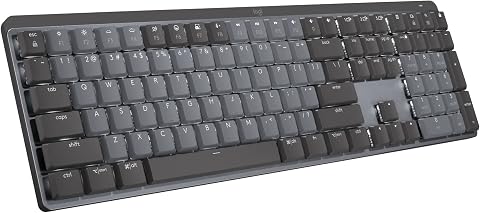
The Logitech MX Mechanical is a wireless mechanical keyboard featuring clicky switches with tactile feedback, low-profile keys for ergonomic comfort, and smart backlit illumination that adjusts automatically. It supports multi-device pairing via Bluetooth or Logi Bolt, offers customizable keys and lighting effects, and has a long-lasting rechargeable battery.
Pros:
- Tactile, clicky mechanical switches for satisfying feedback
- Smart auto-adjusting backlit keys for visibility in any lighting
- Supports multi-device pairing with easy switching
- Long battery life with quick USB-C charging
Cons:
- May be noisy due to clicky switches
- Premium price point might be high for some users
Best for: Traders who prefer a mechanical keyboard and want an illuminated model
Not ideal for: Users who need a different layout, a compact footprint, or a quieter feel
Bottom line: Choose it when its layout, connection, and typing feel suit your actual desk routine.
Ergonomic Desk Chair
A chair affects how comfortably you can stay at your desk through extended research and trading sessions. The listed option is the ELABEST X100 Ergonomic Mesh Office Chair with Footrest, Big and Tall D. Its product name identifies it as a mesh office chair with a footrest, but you should verify the full model details and adjustment features before purchasing. The most useful chair is one that fits your body and desk, not simply one described as ergonomic.
Check the seat dimensions, height range, weight capacity, and available adjustments against your own measurements and desk height. Confirm that the footrest can be used comfortably in your space and does not obstruct nearby equipment or movement. Common mistakes include overlooking seat depth, assuming a chair will fit because it is labeled big and tall, or choosing a feature set without checking whether the adjustments suit your posture. If possible, review the maker’s fit guidance and return conditions before ordering. Set the chair so your feet have stable support, your shoulders can relax, and the keyboard and monitor are positioned without forcing you to reach or hunch.
What to look for:
- Compare seat dimensions and adjustment ranges with your body measurements.
- Verify stated weight capacity and complete model specifications.
- Check chair height against your desk and keyboard position.
- Make sure the footrest fits your available floor space and preferred posture.
- Review fit guidance and return terms before committing.
ELABEST X100 Ergonomic Mesh Office Chair with Footrest, Big and Tall Desk Chair

The ELABEST X100 ergonomic mesh office chair offers all-day comfort with adjustable lumbar support, flip-up armrests, a breathable mesh design, and a 2-position footrest. Engineered for active recovery and versatile use, it combines ergonomic features with a durable, heavy-duty structure suitable for gaming and professional environments.
Pros:
- Highly adjustable for personalized comfort with multiple ergonomic features
- Breathable mesh design enhances airflow and reduces heat buildup
- Heavy-duty construction supports up to 300 lbs and is suitable for gaming and professional use
- Easy to assemble with included tools
Cons:
- May be bulky for smaller spaces
- Complex features might require some time to fully understand and utilize
- Price not specified in the description
Best for: Shoppers seeking a mesh chair with a footrest and a big-and-tall designation
Not ideal for: Anyone whose measurements or desk height fall outside verified chair fit details
Bottom line: Confirm the chair’s dimensions and adjustments against your body and desk before buying.
USB-C Docking Station
A docking station can simplify a laptop-based desk by bringing connections together, but its usefulness depends on the computer and displays it must support. The listed pick is the Plugable UD-ULTC4K 13-in-1 USB-C Docking Station with Triple 4K Displa. The supplied product name is truncated, so verify the complete model name and current manufacturer specifications rather than relying on the partial listing. In particular, do not assume that a dock’s stated display capability works with every computer or every combination of screens.
Check the laptop’s USB-C port capabilities, supported display outputs, power requirements, and operating-system support against the dock’s documentation. If you plan to connect the Dell monitor or multiple displays, confirm the exact supported resolutions and arrangement for your computer and connection path. A frequent mistake is counting ports without checking what each port supports, or assuming a USB-C connector guarantees the same features across devices. Make a list of the peripherals you actually need, then verify that the dock provides the right connections and can fit into your cable layout. Leave access to ports you use regularly and plan where the dock will sit to avoid pulling on cables.
What to look for:
- Verify the complete dock model name and current manufacturer documentation.
- Check laptop USB-C capabilities, operating-system support, and power needs.
- Confirm supported display resolutions and configurations for your specific computer.
- Match the dock’s ports to the peripherals you intend to connect.
- Plan dock placement and cable reach before arranging the desk.
Plugable UD-ULTC4K 13-in-1 USB-C Docking Station with Triple 4K Display Support

Connect up to three 4K 60Hz displays, USB accessories, Ethernet, audio, and SD cards through a single USB-C connection. The dock provides up to 100W laptop charging and up to 20W accessory charging, with compatibility for supported Windows, macOS, and ChromeOS systems.
Pros:
- Supports up to three 4K 60Hz displays
- Provides up to 100W laptop charging
- Combines display, USB, Ethernet, audio, and SD card connections
- Includes lifetime support
Cons:
- Requires DisplayLink drivers on macOS
- HDCP-protected streaming content may not play on connected displays
Best for: Laptop users whose computer supports the dock’s verified ports and displays
Not ideal for: Systems with incompatible USB-C capabilities or unverified multi-display support
Bottom line: Confirm the laptop-to-dock compatibility details before relying on this hub for displays.
Ethernet Network Adapter
The final slot is an extension option for connecting USB devices over a longer distance. The supplied pick is “USB Extender Over Ethernet with 4 USB 2.0 Ports, 50 m (165 ft).” Despite the Ethernet wording, the product name describes a USB extender; do not treat it as an Ethernet network adapter or assume it provides a wired network connection. Check the complete product documentation to understand which devices it supports and what equipment is required at each end.
Before buying, consider whether you actually need to place USB peripherals far from the computer. Verify the supported USB standard, device compatibility, power requirements, and stated distance in the manufacturer’s instructions. The product name specifies four USB 2.0 ports and a 50 m (165 ft) distance, but those labels do not establish suitability for every peripheral or setup. A common mistake is assuming that a USB extender will support high-bandwidth or power-hungry devices simply because it has multiple ports. Confirm the exact cable type and any required components, and test with the intended peripherals before depending on the arrangement for essential desk equipment.
What to look for:
- Confirm this is a USB extender, not a network adapter, in the full product documentation.
- Check device compatibility and the supported USB standard.
- Verify power requirements and any required components at both ends.
- Treat the stated distance as a specification to confirm for your setup.
- Test intended peripherals before relying on the extender for essential devices.
USB Extender Over Ethernet with 4 USB 2.0 Ports, 50 m (165 ft)
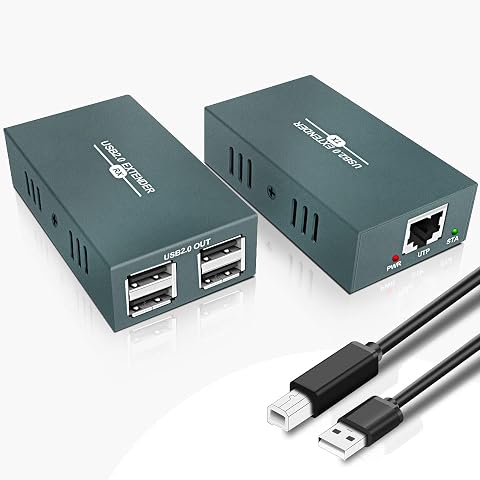
Extends USB connections up to 50 m (165 ft) over a single Cat5, Cat5e, Cat6, or Cat7 Ethernet cable. It provides four USB 2.0 ports, supports plug-and-play operation without drivers, and includes a transmitter, receiver, USB cable, and 5 V power adapter.
Pros:
- Extends USB connections up to 50 m over Ethernet cable
- Provides four USB 2.0 ports
- Plug-and-play setup requires no driver
- Compatible with common peripherals and multiple operating systems
Cons:
- Receiver requires a separate 5 V power adapter
- Requires an Ethernet cable, which is not listed among the included items
Best for: Users who need to extend compatible USB devices over a longer run
Not ideal for: Anyone seeking a wired Ethernet network connection or unverified high-bandwidth support
Bottom line: Use this only for compatible USB peripherals, and do not mistake it for a network adapter.
For a budget-first build, buy in the order that addresses your biggest practical limitation: a suitable display and chair for daily use, then the keyboard and any mounting solution that fits your exact screens. Add a docking station only after confirming your computer’s ports and display support. Treat the USB extender as a specialized add-on, not a substitute for network hardware, and skip it unless you have a clear USB extension need.
A well-planned desk is built around measured space, compatible connections, and comfortable positioning—not a pile of equipment. Check every model’s current specifications before ordering, especially where a product name is incomplete or a component’s stated limits may not match another pick. Make changes one at a time, test the setup, and adjust it to support your own workflow.
Halloween Picks
halloween
As an affiliate, we earn on qualifying purchases.